 Lullpage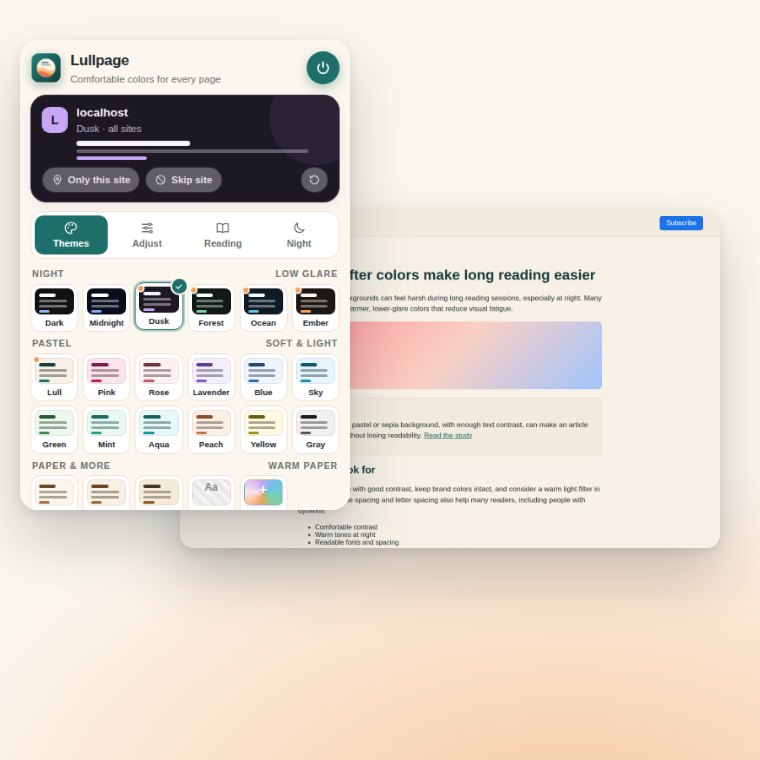
Steps
Step 1: Install Lullpage
Open the Lullpage page on the Chrome Web Store and click Add to Chrome, then Add extension.
Step 2: Pin it to your toolbar
Click the puzzle-piece icon next to Chrome's address bar and click the pin next to Lullpage, so it's always one click away.
Step 3: Open any website and pick a theme
Click the Lullpage icon. In the Themes tab choose a pastel (like Lull or Lavender), a paper tone (like Sepia) or a night theme (like Dusk). It applies to every website instantly.
Step 4: Give one site its own theme (optional)
On a site you want different, click Only this site, then pick a theme. Other sites keep your default.
Step 5: Fine-tune comfort (optional)
In Adjust, change brightness, contrast and warm light. In Reading, choose a readable font, text size and spacing.
Step 6: Turn on night mode (optional)
In the Night tab choose Follow system or Set hours, then pick a night theme like Ember.
Which theme should I pick?
| If you want… | Try |
|---|---|
| Everyday reading that's softer than white | Lull, Cream, Mint |
| A classic book or e-reader feel | Sepia, Warm |
| Dark mode at night | Dusk, Ocean, Dark |
| The least blue light before bed | Ember + warm light |
| A gentle color for focus and study | Lavender, Blue, Sky |
Tips for comfortable reading
- Keep contrast readable. If you make your own colors, aim for a contrast score of at least 4.5:1. Lullpage shows the score as you pick.
- Use warm light in the evening. Start around 30–40% and adjust to taste.
- Try relaxed line spacing for long articles; it makes lines easier to track.
- Skip sites that already look good, like video sites that are dark by default.
Doesn't Chrome have this built in?
Chrome can force a dark mode through an experimental flag, and its Reading mode side panel lets you change colors for one article. Neither lets you choose pastel or sepia themes for whole websites, set per-site rules, or schedule night mode. That's the gap Lullpage fills.
Lullpage works on normal websites. Chrome doesn't allow extensions on its own pages (like the New Tab page or chrome:// settings) or on the Chrome Web Store.